

Announcing TaskFolder: A Sleek App Launcher for Windows 11
TaskFolder: The System Tray Sidekick That's Smarter Than Your Taskbar (And Won't Judge Your Icon Hoarding Habits)

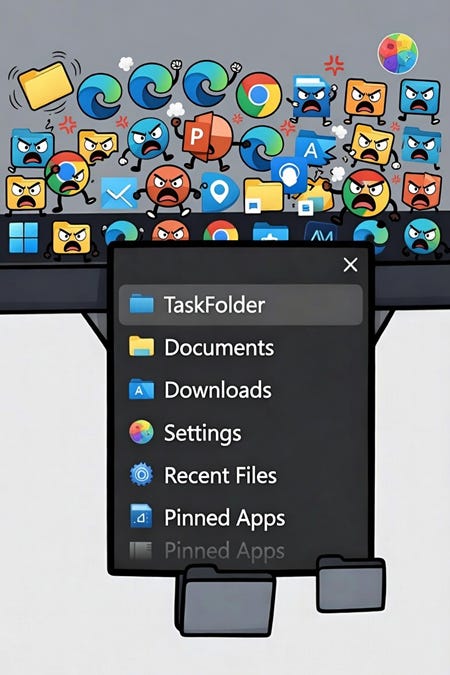
As someone who’s always tinkering with ways to make Windows more efficient, I’m excited to share my latest creation: TaskFolder. If you’re tired of a cluttered taskbar but still want lightning-fast access to your favorite apps, PWAs, and scripts, this little tool might just become your new best friend. TaskFolder is a lightweight system tray app launcher designed specifically for Windows 11 (though it works on Windows 10 too), and it’s completely free and open-source.
Let me take you through what TaskFolder is all about, why I built it, and how you can get started using it today.
The Problem: Windows 11’s Taskbar Woes
Windows 11 brought a fresh, modern look, but it also axed some beloved features from earlier versions—like the customizable taskbar toolbars we had in Windows 7. Remember those handy folders you could pin to the taskbar for quick app launching? Yeah, they’re gone. Pinning too many apps directly to the taskbar turns it into a messy strip of icons, and alternatives like third-party docks often feel bloated or unreliable.
I needed something simple: a way to launch my go-to tools without hogging screen real estate or slowing down my system. That’s where TaskFolder comes in. It’s inspired by those old taskbar toolbars but reimagined for the modern era—lightweight, efficient, and tucked neatly into your system tray.
What Makes TaskFolder Stand Out?
TaskFolder isn’t just another launcher; it’s built with real-world usability in mind. Here’s a breakdown of its key features:
System Tray Magic: Everything lives in your system tray. Left-click the icon to pop open a clean menu of your shortcuts. No taskbar clutter, always accessible, and super quick to use.
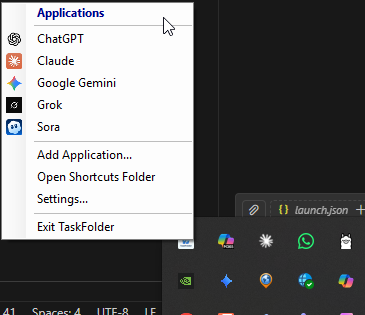
PWA Perfection: Progressive Web Apps (from Edge or Chrome) are handled flawlessly. TaskFolder extracts the right icons (e.g., the Gmail logo, not Edge’s) and launches them as dedicated windows with all parameters intact. It’s like they were pinned to your taskbar, but better.
Tiny Footprint: The app is under 200 KB in size, uses less than 5 MB of RAM, and zero CPU when idle. It’s designed to be invisible until you need it.
Auto-Refresh and Smart Management: Drop shortcuts into the dedicated folder (%APPDATA%\TaskFolder\Shortcuts), and TaskFolder automatically detects changes. It pulls icons from executables, PWAs, or custom locations for a polished look.
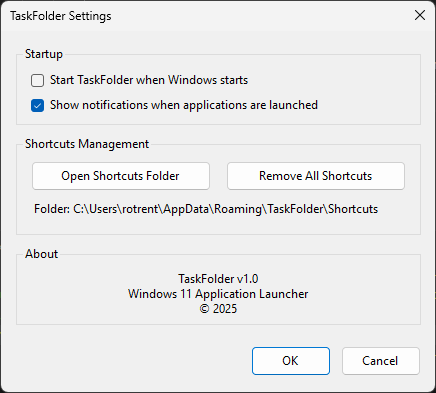
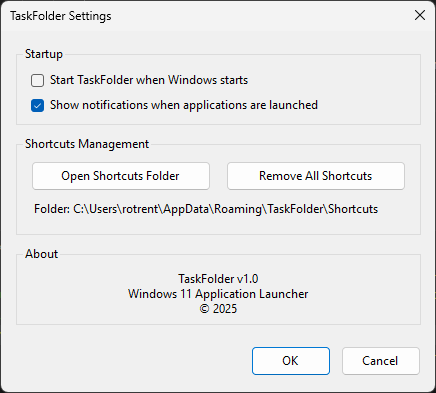
Auto-Start Option: Set it to launch with Windows for seamless integration into your workflow.
Versatile Use Cases:
Power Users: Quick-launch dev tools, PowerShell scripts, IDE profiles, VMs, or databases.
Productivity Pros: PWAs for email, calendars, Slack, Notion, or Trello.
Everyday Folks: Favorite websites as apps, Office tools, or remote desktop connections.
All of this is powered by .NET 8.0, with a mix of Windows Forms for the UI, WPF for advanced features, and some Win32 APIs for icon handling. The core philosophy? Launch .lnk shortcut files directly to let Windows handle the heavy lifting—ensuring compatibility and correct behavior every time.
How to Install TaskFolder
Getting started is straightforward. You’ll need Windows 10 or 11 and the .NET 8.0 Runtime (grab it from Microsoft’s site if you don’t have it).
Head over to the GitHub repo and download the latest release (or build it from source if you’re feeling adventurous).
Run TaskFolder.exe—it’ll appear in your system tray.
Right-click the icon and select “Add Application...” to start populating your menu.
If you want to build it yourself:
git clone https://github.com/rod-trent/TaskFolder.git
dotnet build -c Release
The output will be in bin/Release/net8.0-windows/TaskFolder.exe.
For a self-contained executable (no .NET runtime needed on the target machine):
dotnet publish -c Release -r win-x64 --self-contained true -p:PublishSingleFile=trueUsing TaskFolder: A Quick Guide
Once installed, TaskFolder is intuitive to use.
Adding Apps
Via the GUI: Right-click the tray icon > “Add Application...” > Browse to your .exe or .lnk file.
Drag-and-Drop: Just drop shortcuts into the Shortcuts folder. TaskFolder auto-refreshes.
Launching and Managing
Left-click the tray icon to open the menu and click to launch.
Right-click for options like Settings, where you can enable auto-start or clear all shortcuts.
To remove: Right-click a menu item > Remove.
To reorganize: Rename files in the Shortcuts folder (they sort alphabetically).
Pro Tip: For PWAs, create shortcuts via your browser’s “Install as app” feature, then add them to TaskFolder. You’ll get the native app experience without the taskbar pin.
Behind the Scenes: Why Open Source?
TaskFolder is licensed under MIT, so feel free to use, modify, or even sell it (just don’t blame me if something goes wrong!). The code is clean, with XML comments and async handling where it counts. If you’re a developer, check out the project structure—it’s straightforward C# with classes for shortcut management, icon extraction, and more.
Contributions are welcome! I’ve got some “good first issues” like adding a search box or custom icons. Fork the repo, create a branch, and submit a PR. Let’s make it even better together.
Roadmap ideas include categories for organization, keyboard hotkeys, themes, and cloud sync. If any of that excites you, jump in.
Final Thoughts
TaskFolder has already streamlined my daily workflow—no more hunting through the Start menu or overcrowding my taskbar. If you’re on Windows 11 and craving a simple, powerful launcher, give it a try. It’s free, tiny, and effective.
Head to the GitHub repo to download, star, or contribute. Got questions? Hit me up on X (@rodtrent) or open an issue on GitHub. I’d love to hear how you’re using it!
Happy launching! 🚀