

Collections Plus 2.4: pull the missing pictures for your imported collections
A small, requested feature for my free, local-first replacement for the retiring Edge Collections: import a CSV, then fetch every page's preview image in one click.

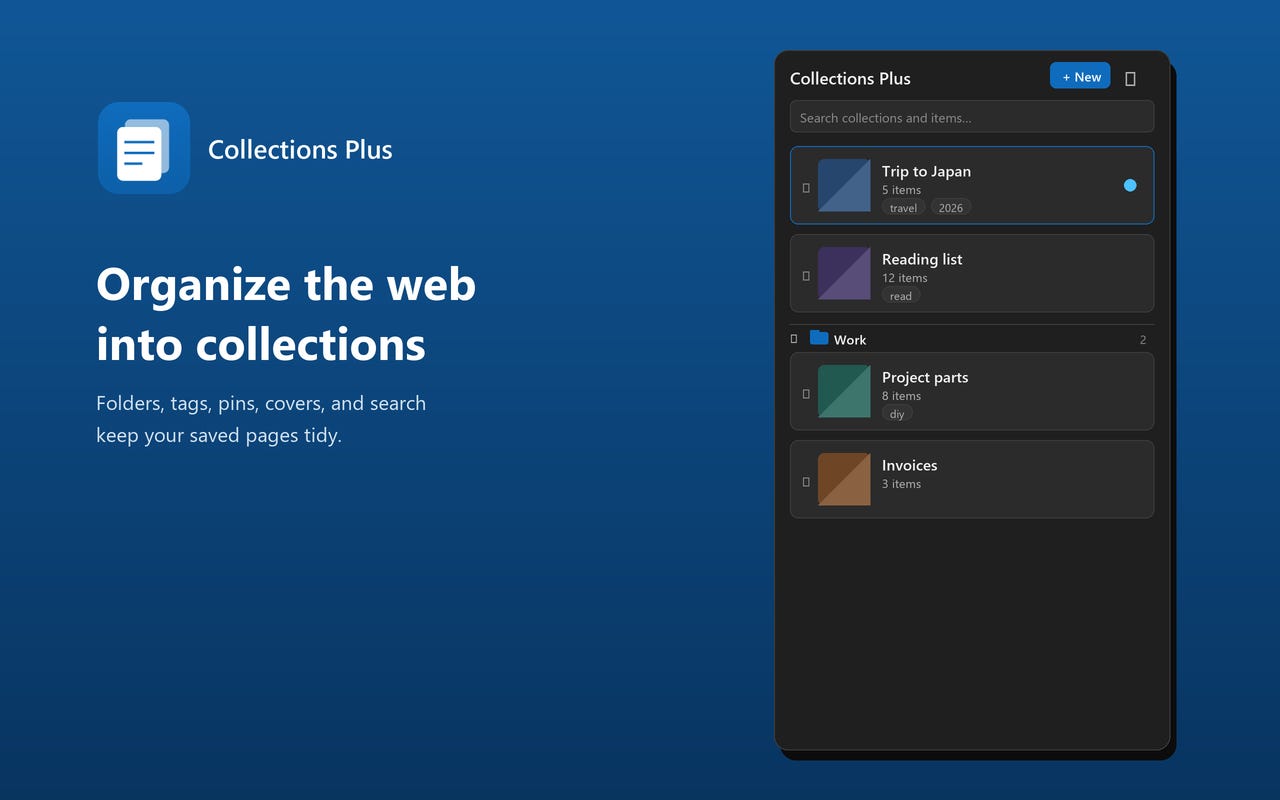
When Microsoft announced it was retiring Edge Collections (around Edge 149, mid-2026), I built Collections Plus to keep mine: a small, open, local-first browser extension that brings Collections back and then keeps going. Almost every feature since has come straight from what people asked for, and 2.4 is exactly that: one focused fix for a gap someone hit on their very first day.
The problem: a great import, with all the pictures missing
Someone imported their collections from a CSV and wrote in. The import itself worked great, they said, collections and items all came across. But every image was missing.
Half of that they expected. A CSV is just text, so of course there are no pictures inside it. What surprised them was that there was no way to go get the images afterward. Their imported collections were technically complete, but they looked like a plain list of links, and, as they put it, the pictures are a big part of what makes a collection nicer than a folder of bookmarks even for a simple list.
Their only fallback was grim: open every item in the collection into a pile of tabs, delete the collection, and re-create it from those tabs so each page would be saved with its image. For a large collection, that’s a lot of clicking to get back something the import should have been able to fill in.
They were right. So in 2.4, it can.
The fix: Fetch missing images
Collections Plus can now go and get the pictures for you, in bulk, after the fact.
When you save a page the normal way, the extension reads the page’s social preview image, the same og:image a link gets when you paste it into a chat app, and stores a small copy. Imported pages never had that step, because they were never open in a tab. 2.4 does that step on demand instead: it visits each saved page, reads its preview image, and stores the same downscaled copy you’d have gotten by saving the page yourself.
There are three ways to use it, depending on how much you want to fix at once:
A whole collection. Open a collection, click the ⋯ menu, and choose Fetch missing images. It works through every page in that collection.
Everything, everywhere. In the settings menu there’s Fetch all missing images, which sweeps every collection in one go, handy right after a big import.
Just one page. Hover any saved page and click the new 🖼️ button to fetch, or refresh, that single item.
By default it only fills in the blanks, so it never touches covers you already have. If you’d rather do a full refresh, for example to replace an old or wrong thumbnail, there’s a setting: flip Fetch images: Missing only to Replace all in the tools menu, and a bulk fetch will re-pull every page’s image.
Pages that simply don’t offer a preview image are left alone. They keep the site favicon they already fall back to, rather than getting a random or broken picture forced onto them. After a run, you’re told how many images came back, so you know what it found.
It’s the difference between an import that gives you your links back and one that gives you your collection back.
A quick note on privacy
This is the one part worth being upfront about, because it’s a feature that touches the network.
Fetching images means the extension makes a request to each saved page to read its preview image, and then to that image’s server to download it. That only ever happens when you click one of the fetch buttons, it goes directly from your browser to those sites, and it does not send your cookies along with it. Nothing is sent to me. I still run no server, collect nothing, and receive nothing. As always, every networked feature is off until you reach for it, and this one does nothing until you ask. I’ve updated the privacy policy to describe it in full.
Get it
It’s free and open source (MIT).
👉 Install Collections Plus from the Chrome Web Store, one click, and it auto-updates from there. Works in Chrome and Edge.
Migrating from Edge takes one click: export your Collections in Edge, then use Import Edge CSV…, or just pull in your bookmarks with the built-in importer. And now, once they’re in, one more click gets the pictures too.
Source, issues, and ideas live on GitHub. This whole release exists because one person imported a CSV and told me what was missing. If you hit a rough edge, tell me, it’s how this thing keeps getting better.
Edge Collections is gone. Yours doesn’t have to, and now it imports whole, pictures and all.