

TaskFolder: A Modern Windows 11 Application Launcher That Actually Works
Because Your Apps Deserve Their Own Hoarding Spot

Remember when Windows 7 had those handy toolbar folders on the taskbar? You could pin a folder right there and quickly access your favorite applications with a single click. It was simple, elegant, and incredibly useful. Then Windows 10 came along and broke it. Windows 11? Forget about it—Microsoft completely removed the feature.
But what if I told you there’s a better way? Let me introduce you to TaskFolder, a lightweight application launcher that brings back quick access to your favorite apps, with a modern twist that works perfectly with Windows 11.
What Is TaskFolder?
TaskFolder is a free, open-source application launcher that lives in your Windows system tray. Think of it as your personal app drawer—a quick-access menu for all the programs you use regularly, whether they’re traditional desktop apps, Progressive Web Apps (PWAs), or anything in between.
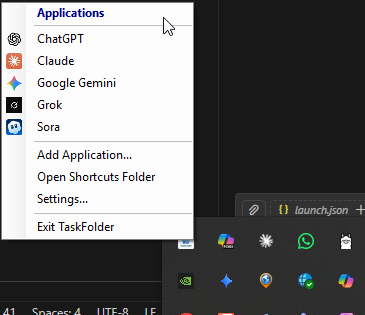
Click the system tray icon, and boom—there’s your customized menu of applications, ready to launch with a single click. No digging through the Start Menu, no searching, no hassle.
Why I Built This
I got tired of Windows 11’s limitations. I wanted quick access to my frequently-used applications without cluttering my taskbar with a dozen pinned icons. I also wanted to organize my Edge PWAs (Progressive Web Apps like Gmail, Twitter, and YouTube) alongside my regular desktop applications.
The old Windows toolbar workaround? Dead. Third-party solutions? Either bloated, expensive, or both. So I built TaskFolder—exactly what I wanted, nothing more, nothing less.
Key Features That Make TaskFolder Cool
1. System Tray Integration
TaskFolder lives quietly in your system tray, taking up zero taskbar space. One click brings up your app menu. Simple.
2. Perfect PWA Support
Edge PWAs are fantastic—they’re lightweight, isolated, and don’t clutter your browser. But launching them has always been awkward. TaskFolder handles PWAs perfectly:
Extracts the correct custom icon (not the generic Edge icon)
Launches them as proper app windows (not browser tabs)
Preserves all launch parameters
Add your Gmail PWA to TaskFolder, and it shows up with Gmail’s icon. Click it, and it opens as a dedicated app window. Perfect.
3. Drag-and-Drop Simplicity
Want to add an application? Two ways:
Right-click the tray icon → “Add Application...” → browse for any .exe
Or just drop a shortcut file into the TaskFolder shortcuts folder
The app automatically monitors the folder, so new shortcuts appear immediately.
4. Zero Configuration Required
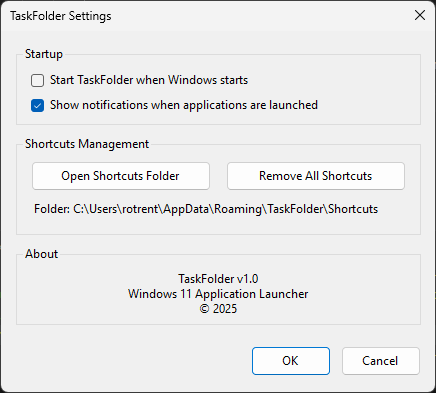
No settings to tweak, no config files to edit. It just works. Want auto-start? There’s a checkbox for that. Otherwise, it’s all automatic.
5. Lightweight & Fast
Under 200 KB compiled size
Uses less than 5 MB RAM
No CPU usage when idle
No external dependencies
Built on .NET 8.0 (which most Windows 11 systems already have)
6. It’s Actually Free
No trials, no subscriptions, no feature gates. Completely free and open source. Do whatever you want with it.
How It Works (The Technical Bits)
For those interested in the implementation:
Architecture
TaskFolder is built with C# and .NET 8.0, using Windows Forms for the system tray integration and WPF components where needed. It’s a single executable that:
Creates a system tray icon using
NotifyIconMonitors a shortcuts folder using
FileSystemWatcherfor automatic updatesLaunches applications by executing the shortcut files directly (preserving all parameters)
Extracts icons from executables and custom icon locations in shortcuts
Why It Works Better Than Alternatives
The Secret: Launch the Shortcut, Not the Executable
Many launcher apps make the mistake of directly launching the target executable. This breaks PWAs and any application with command-line arguments.
TaskFolder launches the .lnk (shortcut) file itself, letting Windows handle all the magic:
Command-line arguments
Working directories
Custom icons
Elevated privileges
Everything
It’s the same as double-clicking the shortcut in File Explorer—which means it always works correctly.
Icon Extraction Intelligence
Edge PWAs store their icons in obscure user profile folders. TaskFolder checks three locations:
The shortcut’s
IconLocationproperty (where PWA icons hide)The target executable’s embedded icon
Windows’ associated icon for the file type
This is why your Gmail PWA shows the Gmail icon instead of a generic Edge browser icon.
Real-World Use Cases
For Power Users
I have TaskFolder auto-start with Windows. My menu includes:
VS Code
Windows Terminal
Gmail (PWA)
Calendar (PWA)
Slack (PWA)
Several PowerShell scripts (yes, it launches scripts too!)
One click on the system tray, and I can launch any of these instantly.
For Developers
Perfect for launching:
Different IDE profiles
Database tools
API testing tools
Virtual machines
Development servers
For Everyone Else
Quick access to:
Email and calendar (as PWAs)
Favorite websites (as PWAs)
Frequently-used Office apps
Remote desktop connections
Literally anything with a shortcut
Getting Started
Installation
Prerequisites:
Windows 11 (or Windows 10)
.NET 8.0 Runtime (probably already installed)
Download:
Grab the latest release from GitHub
Or build from source (instructions below)
Run:
Double-click
TaskFolder.exeLook for the icon in your system tray
Add Applications:
Right-click the tray icon → “Add Application...”
Browse to any .exe or shortcut file
Done!
Building from Source
Want to customize it? Building is straightforward:
git clone https://github.com/rod-trent/JunkDrawer.git
cd JunkDrawer/TaskFolder
dotnet build -c Release
The compiled executable will be in bin/Release/net8.0-windows/TaskFolder.exe.
That’s it. No complicated build process, no missing dependencies, no headaches.
Under the Hood: Design Decisions
Why .NET 8.0?
Cross-platform framework (even though this is Windows-only)
Modern, fast, and efficient
No external dependencies needed
Easy for others to contribute
Why Not Use Jump Lists?
I originally planned to integrate with Windows taskbar Jump Lists, but there’s a catch: Jump Lists require a WPF Application instance, which is complex to set up correctly in a Windows Forms app.
The system tray approach is actually better:
Always visible
Always accessible (no need to pin to taskbar)
Faster to access (single click vs. right-click)
More space for items
Why Store Shortcuts in a Folder?
Simple: flexibility. You can:
Organize shortcuts in Windows Explorer
Back them up easily
Sync them across machines (Dropbox, OneDrive, etc.)
Edit them with any tool
Script their creation
The folder location: %APPDATA%\TaskFolder\Shortcuts\
Known Limitations
Let’s be honest about what TaskFolder doesn’t do:
No categories/folders (yet)
All shortcuts appear in a single list
You can’t create subfolders for organization
Planned for a future update
No search functionality (yet)
If you have 50 shortcuts, you’re scrolling
Also planned for a future update
Windows-only
Built specifically for Windows 11/10
No plans for macOS or Linux (different paradigms)
No sync built-in
But you can manually sync the shortcuts folder with cloud storage
These aren’t bugs—they’re features I haven’t built yet. The code is structured to make these additions straightforward.
Contributing & Feedback
TaskFolder is open source under the MIT License. That means:
Use it however you want
Modify it however you want
Distribute it however you want
No strings attached
Want to contribute? The code is on GitHub. Pull requests welcome for:
Search functionality
Category/folder support
Custom icon picker
Keyboard shortcuts
Statistics tracking
Themes
Or just use it and let me know what you think!
The Bottom Line
TaskFolder does one thing well: gives you quick access to your applications. No bloat, no subscription, no nonsense.
If you’re tired of Windows 11’s limitations and want your taskbar quick-launch functionality back (but better), give TaskFolder a try.
Download: GitHub - TaskFolder
License: MIT (Free & Open Source)
Requirements: Windows 10/11, .NET 8.0 Runtime
Size: ~200 KB
Price: $0.00
Technical Details for the Curious
Project Structure
TaskFolder/
├── Program.cs              # Entry point & system tray logic
├── Models/
│   └── ShortcutItem.cs    # Data model for shortcuts
├── Services/
│   ├── ShortcutManager.cs # Core shortcut management
│   └── JumpListManager.cs # (Disabled) Jump List integration
├── Views/
│   └── SettingsForm.cs    # Settings dialog
└── Utilities/
    ├── IconExtractor.cs   # Icon extraction logic
    └── DragDropHelper.cs  # Drag-drop support
Key Technologies
.NET 8.0: Modern framework
Windows Forms: System tray integration
WPF Components: Advanced Windows features
Dynamic COM: Shortcut file manipulation
Win32 APIs: Icon extraction
Performance Characteristics
Startup time: <100ms
RAM usage: ~5 MB
CPU usage (idle): 0%
CPU usage (active): <1%
Shortcuts folder monitoring: Real-time via FileSystemWatcher
Security Considerations
TaskFolder:
Never sends data over the network
Never accesses the internet
Doesn’t modify system files
Only reads/writes to its own app folder
Doesn’t require admin privileges (except for auto-start registry key)
All operations are local and transparent.
Have you tried TaskFolder? Let me know what you think in the comments! And if you build something cool with the source code, I’d love to hear about it.
Update Log:
v1.0 (January 2025): Initial release
System tray integration
PWA support with proper icons
Auto-start capability
Settings dialog
File system monitoring
This post was written by a human who actually uses this software daily. No AI fluff, no marketing speak—just honest thoughts on a tool I built to solve a real problem.