

TaskFolder v1.1.0: A Big Update to the App That Should Have Been Built into Windows 11
Turns out people actually used it. So now it does a lot more stuff.

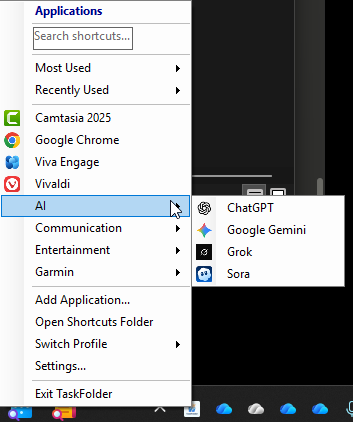
When I first released TaskFolder back at the start of 2026, the pitch was simple: Windows 11 took away the Quick Launch toolbar and the taskbar toolbars we used to customize in Windows 7, and nothing Microsoft offered filled that gap. TaskFolder was my answer — a lightweight system tray app that gives you a single-click menu of your most-used applications, without pinning a dozen icons to your taskbar or building elaborate Start Menu grids.
The response surprised me. People actually used it. People sent feedback. People had opinions about what it was missing.
So I listened. v1.1.0 is the result.
This isn’t a polish pass. It’s a full feature expansion — 15 new capabilities, a complete persistence overhaul, and the elimination of a bunch of dead code that was hanging around from an early experiment. Let me walk you through everything.
The Core Problem v1.0 Left Unsolved
The original release did the basics well: it put your shortcuts in a tray menu, it watched the folder for changes, it handled PWA icons correctly. But it had a fundamental architectural gap — nothing was ever saved.
Launch counts? Reset on every restart. The “Show Notifications” checkbox in Settings? It was wired to nothing. Sort order? Every item got assigned int.MaxValue and fell back to alphabetical — always. The settings file didn’t exist. The metadata file didn’t exist.
v1.1.0 fixes all of that first, because everything else depends on it.
What’s New
🔍 Search/Filter in the Tray Menu
This was the most-requested feature by a wide margin, and it’s one of those things that feels obvious in retrospect.
Open the tray menu and you’ll see a text box at the top. Start typing and the list filters live — no Enter key required. Clear the box and everything comes back. It’s a ToolStripTextBox embedded directly in the ContextMenuStrip, which required a bit of care to get right (the menu needs to stay open while you type, the search box needs to retain focus after the list rebuilds), but the result feels completely natural.
If you have 40+ shortcuts like I do, this alone is worth the update.
📂 Category Submenus from Subfolders
This one required no new UI at all. TaskFolder already watched your Shortcuts\ folder — I just made it watch inside subfolders too.
Create a subfolder called Dev inside your Shortcuts folder, drop your Visual Studio Code, Terminal, and Git tools in there, and TaskFolder automatically shows a Dev submenu in the tray menu. The subfolder name becomes the submenu name. No configuration, no tagging, no drag-and-drop interface to learn. It just works because Windows already has a perfectly good folder metaphor.
%APPDATA%\TaskFolder\Shortcuts\
├── Notepad.lnk ← root level
├── Dev\
│ ├── VS Code.lnk ← “Dev” submenu
│ └── Windows Terminal.lnk
└── Web\
├── GitHub.url ← “Web” submenu
└── ChatGPT.url
The FileSystemWatcher now has IncludeSubdirectories = true, so adding or removing a file inside a category folder updates the menu automatically, just like it did at the root.
🌍 URL Shortcut Support
.url files — Internet Shortcuts, the ones Windows creates when you drag a URL from a browser to the desktop — now work in TaskFolder alongside .lnk and .exe files.
The implementation is deliberately simple. A .url file is just a text file with an [InternetShortcut] section containing a URL= line. TaskFolder reads it directly without COM, launches the URL with UseShellExecute = true so your default browser handles it, and gives it a globe icon extracted from shell32.dll. No browser dependency, no registry lookups.
This means you can pin websites, internal tools, SharePoint pages, or any URL to your tray menu without needing a PWA or a browser shortcut.
📊 Persistent Launch Statistics
The ShortcutItem model always had LaunchCount and LastUsed fields. They were just never saved anywhere, so they evaporated on every restart.
Now they’re stored in %APPDATA%\TaskFolder\metadata.json, a dictionary keyed by filename. Every time you launch a shortcut, the count increments and the timestamp updates — and that information is written to disk immediately. Restarting TaskFolder picks it back up automatically.
This enables the next two features.
⭐ Most Used & Recently Used Submenus
Once launch stats survive restarts, surfacing them in the menu becomes straightforward.
If you’ve launched any shortcuts at least once, Most Used and Recently Used submenus appear at the top of the tray menu — each showing the top 5 entries. Most Used sorts by LaunchCount descending. Recently Used sorts by LastUsed descending.
On a fresh install they don’t appear (no data yet), so new users aren’t confronted with empty sections. As soon as you’ve built up a usage history, they start populating automatically.
For me personally, this is the feature I use most now. My top 5 is almost always what I want. I barely scroll into the full list anymore.
🖱️ Per-Shortcut Right-Click Menu
Previously, right-clicking in the tray menu opened the top-level context menu (Settings, Add Application, Exit). If you wanted to rename or remove a specific shortcut, the README told you to open the Shortcuts folder and do it there manually.
That was a reasonable workaround for v1.0, but it wasn’t a good answer. v1.1.0 fixes it properly.
Right-click any shortcut item and you get a dedicated context menu:
• Rename... — opens a small dialog pre-filled with the current name
• Remove — asks for confirmation, then deletes the file and clears the metadata
• Open File Location — calls explorer.exe /select,”path” to highlight the file in Explorer
• Change Icon... — opens the icon picker (more on this below)
• Move Up / Move Down — reorders the shortcut within its category
All of these work for .lnk, .url, and .exe shortcuts equally.
🖼️ Custom Icon Picker
TaskFolder’s icon extraction is pretty good — it reads the IconLocation from .lnk files, falls back to the target executable, and handles PWA icons correctly. But sometimes the detected icon just isn’t right, or you want a specific look.
Right-click any shortcut → Change Icon... opens a dialog where you can:
1. Browse to any .ico, .exe, or .dll file
2. Set an icon index (for files that contain multiple icons)
3. See a live 32×32 preview before confirming
The chosen path and index are saved to metadata.json. On next load, TaskFolder applies your override before it even attempts auto-detection. Restart the app and your custom icons come back exactly as you set them.
↕️ Move Up / Move Down (Persistent Reorder)
The original sort order was purely alphabetical, with a SortOrder field on ShortcutItem that was always set to int.MaxValue and therefore never used.
Now it’s used. Right-clicking a shortcut and choosing Move Up or Move Down reassigns sort order values across the shortcut’s category group and writes them to metadata.json. The next time TaskFolder loads, shortcuts appear in your custom order. Alphabetical is still the fallback within groups of equal sort order.
True drag-and-drop reorder inside a ContextMenuStrip is technically possible but fragile — the menu closes on mouse-up, and subclassing the renderer to handle it reliably is more complexity than the feature warrants. Move Up / Move Down gives you the same capability with zero UX surprises.
⌨️ Global Hotkey
You shouldn’t have to move your mouse to the system tray to open the menu. A global hotkey fixes that.
In Settings, you can now enable a system-wide hotkey — pick your modifier combination (Ctrl+Alt, Ctrl+Shift, Alt+Shift, Ctrl+Alt+Shift, or Win) and a letter or function key. Press that combination from anywhere and the tray menu pops up at the cursor position.
The implementation uses RegisterHotKey via P/Invoke on a hidden NativeWindow (a NotifyIcon has no HWND to receive the WM_HOTKEY message, so a dedicated message sink is required). The hotkey is unregistered and re-registered immediately when you change it in Settings, with no restart required.
The default suggestion is Ctrl+Alt+T. Change it to whatever fits your muscle memory.
🔔 Balloon Tip Notifications
The Settings dialog always had a “Show notifications when applications are launched” checkbox. It was wired to nothing.
Now it’s wired up. Enable it and you’ll see a small balloon tip from the tray icon each time you launch a shortcut — showing the app name and confirming the launch. It uses NotifyIcon.ShowBalloonTip with a 2-second timeout, so it’s unobtrusive.
Disable it if you find it distracting. The setting persists to settings.json.
📡 Live Tray Icon Tooltip
Hover over the TaskFolder tray icon and you now see how many shortcuts are loaded and which profile is active:
TaskFolder — 12 shortcuts [Work]
It’s a small thing, but it gives you a quick sanity check — especially useful when switching profiles.
👤 Profiles
This is the feature I was most hesitant to add, because profile systems can get complicated fast. TaskFolder’s approach is deliberately minimal.
A profile is just a folder. The Default profile is your existing Shortcuts\ folder — nothing moves, nothing breaks. Additional profiles live under %APPDATA%\TaskFolder\Profiles\<name>\.
Switch profiles from the tray menu (Switch Profile submenu) or create a new one on the spot with “New Profile...”. TaskFolder repoints the FileSystemWatcher, reloads shortcuts from the new folder, and updates the menu — all without restarting.
Use cases:
• Work and Personal sets that don’t bleed into each other
• Project-specific shortcut sets you switch into while working on a particular codebase
• Presentation mode with only the apps you use on stage
💾 Portable Mode
Run TaskFolder from a USB drive, a network share, or any folder without leaving footprints in %APPDATA%:
TaskFolder.exe --portable
With that flag, all data — settings.json, metadata.json, Shortcuts\, Profiles\ — lives next to the executable. Plug in your drive on any Windows machine and your full setup comes with you.
Under the Hood: The Architecture Changes
The features are the headline, but the architectural changes underneath them are worth explaining — because they’re what make all of this hang together.
SettingsService
Every persistent piece of data now flows through a single SettingsService. It owns two JSON files:
• settings.json — app-wide settings (notifications toggle, hotkey config, active profile, portable mode flag)
• metadata.json — a dictionary of per-shortcut data (launch count, last used, sort order, custom icon path + index), keyed by filename
Writes are atomic: data goes to a .tmp file first, then File.Copy overwrites the target, then the temp file is deleted. A crash mid-write can’t corrupt your data.
HotkeyService
A hidden NativeWindow subclass (HotkeyWindow) receives WM_HOTKEY messages from the Windows message loop and fires a HotkeyPressed event. NotifyIcon has no window handle of its own, so this dedicated message sink is the correct pattern for system-wide hotkeys in a WinForms tray app.
ProfileService
Thin service that resolves folder paths and delegates the actual work to ShortcutManager.SetShortcutsFolder(). The Default profile maps to the legacy Shortcuts\ path for backwards compatibility — no migration required.
Removed: JumpListManager and UseWPF
An early version of TaskFolder attempted Windows Jump List integration. It required a WPF Application object, which doesn’t exist in a Windows Forms app, so the entire implementation was commented out behind /* ... */ and the class was kept alive doing nothing.
v1.1.0 deletes it entirely, along with the <UseWPF>true</UseWPF> project flag it necessitated. The published build is measurably smaller as a result.
Getting the Update
Installer: Download TaskFolder-Setup-1.1.0.exe from the Releases page.
Build from source:
bash
git clone https://github.com/rod-trent/TaskFolder.git
cd TaskFolder
dotnet build TaskFolder.csproj -c Release
Requirements: Windows 10 or 11, .NET 8.0 Runtime.
Your existing shortcuts migrate automatically. The first time v1.1.0 runs it creates settings.json and metadata.json alongside your existing Shortcuts\ folder — nothing moves or gets deleted.
What’s Still on the List
A few things didn’t make it into this release:
• Themes / dark mode — The tray menu inherits Windows’ system theme reasonably well, but explicit dark mode support with custom rendering would be a nice addition.
• Cloud sync — Technically you can already get this by pointing your Shortcuts folder at a OneDrive or Dropbox location, but a first-class “sync folder” setting would make it more discoverable.
• Unit tests — SettingsService and ShortcutManager are the obvious candidates. The COM-heavy shortcut loading makes some paths tricky to test without real .lnk files, but it’s doable.
• True drag-to-reorder — Move Up/Down works, but a proper drag handle in a dedicated “Manage Shortcuts” window would be more satisfying for large lists.
Closing Thoughts
TaskFolder started as a personal frustration project — one of those things you build in a weekend because the thing you want doesn’t exist. v1.0 was proof that the concept worked. v1.1.0 is the version where it actually feels complete enough to recommend to someone without caveats.
The core philosophy hasn’t changed: this is a tool that stays out of your way. Under 200 KB, under 5 MB RAM, zero CPU when idle. It doesn’t need an account, doesn’t phone home, doesn’t update itself. It just sits in your tray and does one thing well.
If you run into any issues or have ideas for what comes next, the GitHub Issues page is the right place. And if TaskFolder saves you a click or two every day, a GitHub star goes a long way.
TaskFolder is open source under the MIT License. Do whatever you want with it.